 This post explains how to perform a Rolling Index Build on a Kubernetes environment running Percona Operator for MongoDB. Why and when to perform a Rolling Index Build? Building an index requires: CPU and I/O resources Database locks (even if brief) Network bandwidth If you have very tight SLAs or systems that are already operating […]
Jul
28
2025
28
2025
--
How to Perform Rolling Index Builds with Percona Operator for MongoDB
Jul
21
2025
21
2025
--
Using replicaSetHorizons in MongoDB
 When running MongoDB replica sets in containerized environments like Docker or Kubernetes, making nodes reachable from inside the cluster as well as from external clients can be a challenge. To solve this problem, this post will explain the Horizons feature of Percona Server for MongoDB. Let’s start by looking at what happens behind the scenes […]
Feb
26
2025
26
2025
--
Using VS Code and Docker to Debug MySQL Crashes
 Typically, we receive customer tickets regarding crashes or bugs, where we request a core dump to analyze and identify the root cause or understand the unexpected behavior. To read the core dumps, we also request the linked libraries used by the server’s MySQL. However, there’s a more efficient way to achieve our goal: by using […]
May
07
2024
07
2024
--
Hello World… Hello Valkey! Let’s Get Started!
 Welcome Valkey to the Percona family! We are excited to have you join our team of MySQL, PostgreSQL, and MongoDB database experts.Hang on. What is Valkey? In short, Valkey is a fork of Redis which maintains the original open source BSD license[1]. If you’re new to Redis/Valkey, then this ‘getting started’ post is just for […]
May
16
2023
16
2023
--
Backup and Restore with MyDumper on Docker

At the end of 2021, I pushed the first Docker image to hub.docker.com. This was the first official image and since then, we have been improving our testing and packaging procedures based on Docker, CircleCI, and GitHub Actions. However, when I’m coding, I’m not testing in Docker. But a couple of weeks ago, when I was reviewing an issue, I realized some interesting Docker use cases that I want to share.
Common use case
First, we are going to review how to take a simple backup with MyDumper to warm you up:
docker run --name mydumper
     --rm
     -v ${backups}:/backups
     mydumper/mydumper:v0.14.4-7
     sh -c "rm -rf /backups/data;
          mydumper -h 172.17.0.5
               -o /backups/data
               -B test
               -v 3
               -r 1000
               -L /backups/mydumper.log"
You will find the backup files and the log on ${backups}. Then you can restore it using:
docker run --name mydumper
     --rm
     -v ${backups}:/backups
     mydumper/mydumper:v0.14.4-7
     sh -c "myloader -h 172.17.0.4
               -d /backups/data
               -B test
               -v 3
               -o
               -L /backups/myloader.log"
And if you want to do it faster, you can do it all at once:
docker run --name mydumper
     --rm
     -v ${backups}:/backups
     mydumper/mydumper:v0.14.4-7
     sh -c "rm -rf /backups/data;
          mydumper -h 172.17.0.5
               -o /backups/data
               -B test
               -v 3
               -r 1000
               -L /backups/mydumper.log ;
          myloader -h 172.17.0.4
               -d /backups/data
               -B test
               -v 3
               -o
               -L /backups/myloader.log"
We can remove the option to mount a volume (-v ${backups}:/backups), as the data will reside inside the container.
Advance use case
Since version 0.14.4-7, I created the Docker image with ZSTD instead of GZIP because it is faster. Other options that are always useful are –rows/-r and –chunk-filesize/-F. On the latest releases, you can run ‘100:1000:0’ for -r, which means:
- 100 as the minimal chunk size
- 1000 will be the starting point
- 0 means that there won’t be a maximum limit
And in this case, where we want small files to be sent to myloader as soon as possible, and because we don’t care about the number of files either, -F will be set to 1.
In the next use case, we are going to stream the backup through the stdout from mydumper to myloader, streaming the content without sharing the backup dir:
docker run --name mydumper
     --rm
     -v ${backups}:/backups
     mydumper/mydumper:v0.14.4-7
     sh -c "rm -rf /backups/data;
          mydumper -h 172.17.0.5
               -o /backups/data
               -B test
               -v 3
               -r 100:1000:0
               -L /backups/mydumper.log
               -F 1
               --stream
               -c
        | myloader -h 172.17.0.4
               -d /backups/data_tmp
               -B test
               -v 3
               -o
               -L /backups/myloader.log
               --stream"
In this case, backup files will be created on /backups/data, sent through the pipeline, and stored on /backups/data_tmp until myloader imports that backup file, and then it will remove it.
To optimize this procedure, now, we can share the backup directory setting –stream to NO_STREAM_AND_NO_DELETE, which is not going to stream the content of the file but is going to stream the filename, and it will not delete it as we want the file to be shared to myloader:
docker run --name mydumper
     --rm
     -v ${backups}:/backups
     mydumper/mydumper:v0.14.4-7
     sh -c "rm -rf /backups/data;
          mydumper -h 172.17.0.5
               -o /backups/data
               -B test
               -v 3
               -r 100:1000:0
               -L /backups/mydumper.log
               -F 1
               --stream=NO_STREAM_AND_NO_DELETE
               -c
        | myloader -h 172.17.0.4
               -d /backups/data
               -B test
               -v 3
               -o
               -L /backups/myloader.log
               --stream"
As you can see, the directory is the same. Myloader will delete the files after importing them, but if you want to keep the backup files, you should use –stream=NO_DELETE.
The performance gain will vary depending on the database size and number of tables. This can also be combined with another MyDumper feature, masquerade your backups, which allows you to build safer QA/Testing environments.
Conclusion
MyDumper, which already has proven that it is the fastest logical backup solution, now offers a simple and powerful way to migrate data in a dockerized environment.
Percona Distribution for MySQL is the most complete, stable, scalable, and secure open source MySQL solution available, delivering enterprise-grade database environments for your most critical business applications… and it’s free to use!
Sep
03
2021
03
2021
--
How to Install and Run PostgreSQL Using Docker

This blog was originally published in Sept 2021 and was updated in November 2023.
Following the series of blogs started by Peter Zaitsev in Installing MySQL with Docker, on deploying Docker containers running open source databases, in this article, I’ll demonstrate how to install and run PostgreSQL using Docker.
Before proceeding, it is important to remind you of Peter’s warning from his article, which applies here as well:
“The following instructions are designed to get a test instance running quickly and easily; you do not want to use these for production deployments.”
We intend to show how to bring up PostgreSQL instance(s) into Docker containers. Moreover, you will find some basic Docker management operations and some snippets containing examples, always based on the Docker Hub PostgreSQL official image.
What is a PostgreSQL Docker Container?
A PostgreSQL Docker container is a lightweight, standalone, and executable software package that includes all the necessary components to operate a PostgreSQL database server. It encompasses the PostgreSQL server software, along with an execution environment, essential system tools, libraries, and configurations. These Docker containers provide an isolated environment for the database, guaranteeing uniformity across various stages such as development, testing, and production, independent of the base infrastructure.
The Benefits of Using Docker for PostgreSQL
Docker offers a range of advantages for managing PostgreSQL, including the enhancement of development flexibility, deployment streamlining, and consistent environments across different stages of the application lifecycle. Here, we’ll look at a few of these benefits in detail, exploring how Docker’s containerization can significantly boost the efficiency, reliability, and scalability of PostgreSQL deployments.
Provides an isolated environment
Docker containers offer a high level of isolation for PostgreSQL environments, acting like self-contained units to prevent conflicts between different PostgreSQL instances or between PostgreSQL and other applications. Modifications or updates applied to a single Docker container are restricted to that specific container, safeguarding the integrity of others. This characteristic is particularly useful in complex environments where multiple versions or configurations of PostgreSQL need to coexist without interference.
Easy to use
The process of installing PostgreSQL in a Docker container is easy and fast, often accomplished with just a few commands. This is a significant advantage for developers and DBAs, as it reduces the time and effort required for setup and configuration. Additionally, Docker’s portable nature means these PostgreSQL containers can be easily replicated and deployed across different environments, further streamlining the development and deployment process.
Can Run Multiple Versions of PostgreSQL Using Docker
Docker containers enable the simultaneous running of multiple PostgreSQL versions in separate containers, which is beneficial for users who need to test or work with different database versions at the same time. For example, a developer can run legacy and latest versions of PostgreSQL in different containers on the same host, allowing for efficient testing and compatibility checks. Because Docker isolates these environments, every version runs independently, making it a dependable and flexible testing ground.
Enhanced Scalability
Docker containers provide a scalable solution for PostgreSQL, facilitating easy expansion or contraction of database resources as needed. By leveraging tools like Docker Compose, users can quickly orchestrate multiple containers, making it simpler to manage complex PostgreSQL deployments. When integrated with advanced orchestration platforms like Kubernetes, Docker enables the creation of highly available and load-balanced PostgreSQL clusters. This approach allows for seamless scaling, where additional PostgreSQL instances can be deployed effortlessly to handle the increased load and scaled down when demand subsides. Such flexibility is invaluable for maintaining high availability and reliability in varying workload conditions.
Run PostgreSQL in your production and mission-critical environments with certified and tested open source software and tools. Plus, easily deploy and orchestrate reliable PostgreSQL in Kubernetes with Percona for PostgreSQL.
Helps ensure resource efficiency
Unlike traditional virtual machines, Docker containers share the host’s operating system kernel and consume fewer resources, allowing for a higher density of containers on a single machine. This efficient utilization of resources means users can operate several PostgreSQL containers at once without a substantial impact on performance. This method allows users to maintain multiple, separate PostgreSQL environments where resource optimization is crucial.
Better data persistence
Docker containers for PostgreSQL offer robust solutions for data persistence, ensuring that database information remains secure and intact. Through the use of data volumes, Docker allows PostgreSQL data to be stored in a way that is separate from the container’s lifecycle, meaning that the data is not lost when the container is terminated or updated.
Enables rapid deployment
Docker containers are highly valuable for continuous integration/continuous deployment (CI/CD) pipelines and DevOps practices. The containerization of PostgreSQL allows for quick setup and configuration, and this rapid deployment capability is integral to CI/CD workflows, where the ability to consistently and quickly test changes in a database environment is crucial. Docker’s compatibility with various automation tools further enhances this process, allowing for seamless integration into existing DevOps practices.
Installing PostgreSQL using Docker
Starting with the installation, the following example shows how to bring up a Docker container within the latest PostgreSQL release from Docker Hub. It is required to provide the password of the Postgres user at the moment you are launching the container; otherwise, the container will not be created:
$ docker run --name dockerPostgreSQL
-e POSTGRES_PASSWORD=secret
-d postgres:latest
Once you start the container, you can check if it successfully started with docker inspect:
$ docker inspect -f '{{.State.Running}}' dockerPostgreSQL
true
If not, you can try starting it manually (you will see how to do it on the Managing the PostgreSQL Containers section).
Getting Connected to the Containerized Instance
The snippet below will show you how to connect to your PostgreSQL containerized instance.
- Directly from docker:
$ docker exec -it dockerPostgreSQL psql --user postgres
postgres=# conninfo

You are connected to database "postgres" as user "postgres" via socket in "/var/run/postgresql" at port "5432".
- Or from a PostgreSQL client connecting to its IP address, which you can obtain with the command docker inspect:
$ docker inspect -f '{{.NetworkSettings.IPAddress}}' dockerPostgreSQL
172.16.0.12

$ psql --user postgres --port 5432 --host 172.16.0.12
postgres=# conninfo
You are connected to database "postgres" as user "postgres" on host "172.16.0.12" at port "50432".
Managing the PostgreSQL Containers
The command below will show you how to list all active containers and their respective statuses:
$ docker ps
CONTAINER ID        IMAGE               COMMAND                  CREATED             STATUS              PORTS                     NAMES
7f88656c4864        postgres:11         "docker-entrypoint..."   4 minutes ago       Up 4 minutes        0.0.0.0:50432->5432/tcp   dockerPostgreSQL11
8aba8609dabc        postgres:11.5       "docker-entrypoint..."   21 minutes ago      Up 21 minutes       5432/tcp                  dockerPostgreSQL115
15b9e0b789dd        postgres:latest     "docker-entrypoint..."   32 minutes ago      Up 32 minutes       5432/tcp                  dockerPostgreSQL
To stop one of the containers, do:
$ docker stop dockerPostgreSQL
To start a container:
$ docker start dockerPostgreSQL
Finally, to remove a container, first stop it and then:
$ docker rm dockerPostgreSQL
Customizing PostgreSQL Settings in the Container
Let’s say you want to define different parameters for the PostgreSQL server running on Docker. You can create a custom postgresql.conf configuration file to replace the default one used with Docker:
$ docker run --name dockerPostgreSQL11 -p 50433:5432 -v "$PWD/my-postgres.conf":/etc/postgresql/postgresql.conf -e POSTGRES_PASSWORD=scret -d postgres:11
Another example of how to pass startup arguments is changing the directory which stores the wal files:
$ docker run --name dockerPostgreSQL11 -p 50433:5432 -v "$PWD/my-postgres.conf":/etc/postgresql/postgresql.conf -e POSTGRES_PASSWORD=scret -e POSTGRES_INITDB_WALDIR=/backup/wal -d postgres:11
Running Different PostgreSQL Versions in Different Containers
You can launch multiple PostgreSQL containers, each running a different PostgreSQL version. In the example below, you will find how to start up a 10.5 PostgreSQL version:
$ docker run --name dockerPostgreSQL105 -p 50433:5432 -e POSTGRES_PASSWORD=scret  -d postgres:10.5
7f51187d32f339688c2f450ecfda6b7552e21a93c52f365e75d36238f5905017
Here is how you could launch a PostgreSQL 11 container:
$  docker run --name dockerPostgreSQL11 -p 50432:5432 -e POSTGRES_PASSWORD=scret -d postgres:11
7f88656c4864864953a5491705ac7ca882882df618623b1e5664eabefb662733
After that, by reissuing the status command, you will see all of the already created ones:
$ docker ps
CONTAINER ID        IMAGE               COMMAND                  CREATED             STATUS              PORTS                     NAMES
e06e637ae090        postgres:10.5       "docker-entrypoint..."   4 seconds ago       Up 4 seconds        0.0.0.0:50433->5432/tcp   dockerPostgreSQL105
7f88656c4864        postgres:11         "docker-entrypoint..."   About an hour ago   Up About an hour    0.0.0.0:50432->5432/tcp   dockerPostgreSQL11
15b9e0b789dd        postgres:latest     "docker-entrypoint..."   2 hours ago         Up 2 hours          5432/tcp                  dockerPostgreSQL
You will notice that both 10.5 and 11 were created with different port mappings. Locally into the container, both are listening on 5432 but are externally mapped to different ports. Therefore, you will be able to access all of them externally.
You will find even more details on the PostgreSQL Hub Docker site.
Percona for PostgreSQL
Percona for PostgreSQL software and services make running performant, highly available PostgreSQL in production and mission-critical environments virtually plug and play. Innovate freely with no need to sift through hundreds of extensions or settle for locked-in forks.
Learn more about Percona for PostgreSQL
FAQs
Can you use PostgreSQL with Docker?
Yes, you can use PostgreSQL with Docker. Docker provides a convenient and efficient way to deploy and manage PostgreSQL containers, allowing for easy setup, scalability, and isolation of database environments.
Should I run PostgreSQL in Docker?
Running PostgreSQL in Docker can be a good choice, especially for development, testing, and staging environments. It offers ease of deployment, consistency across different environments, and the ability to quickly spin up or tear down instances. However, for production environments, it’s important to consider factors like performance, data persistence, and security.
How do I connect a PostgreSQL database with Docker?
To connect to a PostgreSQL database in a Docker container, you first need to run a PostgreSQL container using Docker. After that, utilize typical PostgreSQL connection methods or libraries for the connection, specifying the IP address or hostname of the Docker container, the appropriate port number, and your database login details. Docker also allows port mapping to access the PostgreSQL server using the localhost address on your machine.
Aug
31
2021
31
2021
--
MongoDB Docker Installation: Everything You Need to Know
This blog was originally published in August of 2021 and updated in November of 2023.
Following the series of blogs written with the intention to describe basic operations matching Docker and open source databases, in this article, I will demonstrate how to proceed with installing MongoDB with Docker.
The first one, written by Peter Zaitsev, was Installing MySQL with Docker.
Before proceeding, it is important to double warn by quoting Peter’s article:
“The following instructions are designed to get a test instance running quickly and easily; you do not want to use these for production deployments”.
Also, a full description of Docker is not the objective of this article, though I assume prior knowledge of Docker, and also you that already have it installed and configured to move on.
Docker quickly deploys standalone MongoDB containers. If you are looking for fast deployments of both replica sets and shards, I suggest looking at the mlaunch tool.
Peter mentioned, in his article, how MySQL has two different “official” repositories, and with MongoDB, it’s the same: MongoDB has one repository maintained by MongoDB and another maintained by Docker. I wrote this article based on the Docker-maintained repository.
What are MongoDB Docker Containers?
Docker containers are small, executable, standalone packages that come with all the components—code, runtime, libraries, and system tools—necessary to run a piece of software. They provide a reliable and effective method for developing, deploying, and executing applications in a range of settings, from development to production.
When discussing MongoDB containers, we are talking about a Docker container holding MongoDB together with its particular version, customizations, and dependencies. Whether it is a production server, a test environment, or a developer’s workstation, this encapsulation makes it easier to deploy MongoDB instances in a variety of scenarios, making it more portable and scalable.
Installing the Latest Version of MongoDB
The following snippet is one example of how to initiate a container of the latest MongoDB version from the Docker repository.
docker run --name mongodb_dockerhub
                -e MONGO_INITDB_ROOT_USERNAME=admin
                -e MONGO_INITDB_ROOT_PASSWORD=secret
                -d mongo:latest
Now, if you want to check the container status right after creating it:
docker ps

CONTAINER ID        IMAGE COMMAND                  CREATED STATUS PORTS               NAMES
fdef23c0f32a        mongo:latest "docker-entrypoint..."   4 seconds ago Up 4 seconds 27017/tcp           mongodb_dockerhub
Connecting to MongoDB Server Docker Container
Having the container installed up and running, you will notice that no extra step or dependency installation was previously required, apart from the docker binaries. Now, it is time to access the container MongoDB shell and issue a basic command like “show dbs”.
docker exec -it mongodb_dockerhub mongo -u admin -p secret
MongoDB shell version v4.2.5
connecting to: mongodb://127.0.0.1:27017/?compressors=disabled&gssapiServiceName=mongodb
Implicit session: session { "id" : UUID("89c3fb4a-a8ed-4724-8363-09d65024e458") }
MongoDB server version: 4.2.5
Welcome to the MongoDB shell.

> show dbs
admin   0.000GB
config  0.000GB
local   0.000GB

> exit
bye
It is also possible to connect to the containerized MongoDB using a host mongo shell. On the docker ps output, the container id has a field that informs its port mapping, and then it is a simple connection using that port.
In the below example, we connected to the mongodb_dockerhub36. It’s up and running locally on port 27017 but mapped to the host 27018 port:
docker ps

CONTAINER ID        IMAGE               COMMAND                  CREATED             STATUS              PORTS                      NAMES
60ffc759fab9        mongo:3.6           "docker-entrypoint..."   20 seconds ago      Up 19 seconds       0.0.0.0:27018->27017/tcp   mongodb_dockerhub36
Hence, the mongo shell connection string will be executed against the external IP and port 27018
mongo admin -u admin --host 172.16.0.10 --port 27018 -psecret
Managing MongoDB Server in Docker Container
The following commands will demonstrate basic management operations when managing a MongoDB container.
- Starting the container and checking the Status
docker start mongodb_dockerhub

docker ps

CONTAINER ID        IMAGE COMMAND                  CREATED STATUS PORTS               NAMES
fdef23c0f32a        mongo:latest "docker-entrypoint..."   47 minutes ago Up 2 seconds 27017/tcp           mongodb_dockerhub
- Stopping the container and checking the Status
docker stop mongodb_dockerhub

docker ps

CONTAINER ID        IMAGE COMMAND
- Taking a look at the MongoDB log entries
docker logs mongodb_dockerhub
...
about to fork child process, waiting until server is ready for connections.
forked process: 25
2020-04-10T14:04:49.808+0000 I  CONTROL [main] ***** SERVER RESTARTED *****
2020-04-10T14:04:49.812+0000 I  CONTROL [main] Automatically disabling TLS 1.0, to f
...
Passing Command Line Options to MongoDB Server in Docker Container
It is also possible to define the instance’s parameters when launching the MongoDB container. In the example below, I will show how to set the WiredTiger cache.
docker run --name mongodb_dockerhub
                -e MONGO_INITDB_ROOT_USERNAME=admin -e MONGO_INITDB_ROOT_PASSWORD=secret
                -d mongo:latest --wiredTigerCacheSizeGB 1.0
Running Different MongoDB Server Versions in Docker
Another possibility is getting two MongoDB containers running in parallel but under different versions. The below snippet will describe how to build that scenario
- Launching a 4.0 container
docker run --name mongodb_dockerhub40
 -e MONGO_INITDB_ROOT_USERNAME=admin -e MONGO_INITDB_ROOT_PASSWORD=secret
 -d mongo:4.0
- Launching a 3.6 container
docker run --name mongodb_dockerhub36
 -e MONGO_INITDB_ROOT_USERNAME=admin -e MONGO_INITDB_ROOT_PASSWORD=secret
 -d mongo:3.6
- Checking the container’s status
docker ps

CONTAINER ID        IMAGE COMMAND                  CREATED STATUS PORTS               NAMES
e9f480497f2d        mongo:3.6 "docker-entrypoint..."   32 seconds ago Up 32 seconds 27017/tcp           mongodb_dockerhub36
3a799f8a907c        mongo:4.0 "docker-entrypoint..."   41 seconds ago Up 41 seconds 27017/tcp           mongodb_dockerhub40
If for some reason you need both containers running simultaneously and access them externally, then use different port mappings. In the below example, both MongoDB’s containers are deployed on the local 27017 port, nevertheless, I am setting different external port maps for each one.
- MongoDB 4.0 mapping the port 27017
docker run --name mongodb_dockerhub40
 -p 27017:27017
 -e MONGO_INITDB_ROOT_USERNAME=admin -e MONGO_INITDB_ROOT_PASSWORD=secret
 -d mongo:4.0
- MongoDB 3.6 mapping the port 27018
docker run --name mongodb_dockerhub36
 -p 27018:27017
 -e MONGO_INITDB_ROOT_USERNAME=admin -e MONGO_INITDB_ROOT_PASSWORD=secret
 -d mongo:3.6
- Checking both Container’s status
docker ps

CONTAINER ID        IMAGE COMMAND                  CREATED STATUS PORTS                      NAMES
78a79e5606ae        mongo:4.0 "docker-entrypoint..."   3 seconds ago Up 2 seconds 0.0.0.0:27017->27017/tcp   mongodb_dockerhub40
60ffc759fab9        mongo:3.6 "docker-entrypoint..."   20 seconds ago Up 19 seconds 0.0.0.0:27018->27017/tcp   mongodb_dockerhub36
There are a lot of extra details on Docker’s MongoDB Hub page and you will find more options to use on your MongoDB Docker deployment. Enjoy it!
Advantages of Using Docker for MongoDB
MongoDB Docker containers offer a more efficient, consistent, and scalable way to run MongoDB instances, and they offer several advantages over typical MongoDB installations in the following ways:
Isolation and portability: Because MongoDB containers have their own file system, libraries, and network configurations, they are isolated from the host system. Because of this isolation, the MongoDB instance is guaranteed to operate consistently no matter what host system is used. In conventional setups, achieving this degree of isolation is difficult.
Uniformity throughout environments: MongoDB instances are housed in a uniform environment thanks to MongoDB containers. This consistency minimizes the “it works on my machine” issue by guaranteeing that what functions on a developer’s laptop will act similarly in a staging or production environment.
Dependency management: MongoDB containers bundle all required dependencies, removing the possibility of conflicts with the host system’s other programs or libraries. Managing and resolving dependencies in a typical MongoDB installation can be difficult and error-prone.
Scalability and resource management: MongoDB containers and other containers are very scalable. Multiple MongoDB containers can be quickly spun up to divide workloads, establish replica sets, and sharded clusters. A conventional MongoDB installation’s scaling can be more difficult.
Easy to use: Setting up MongoDB containers is a simple procedure, as you can specify the desired state of your MongoDB containers using Docker Compose or Kubernetes, and then let the orchestration tools take care of the deployment.
Troubleshooting and Common Issues for MongoDB Docker Installation
Although deploying MongoDB in a Docker container has many advantages, there are occasionally typical challenges. Here, we’ll explore some of these issues and provide troubleshooting guidance.
MongoDB container fails to start: If your MongoDB container doesn’t start, check that the Docker command you are using to launch it is correct. Verify image names, ports, and environment variables one more time and examine container logs.
Connection issues: Make sure your application is connecting to the correct hostname and port if you are experiencing issues with MongoDB connections in Docker. Verify network settings to ensure appropriate communication, as well as the accuracy of the credentials before utilizing authentication.
Data persistence: By configuring data persistence, you can prevent data loss in the case that a MongoDB container is stopped or removed. Use Docker volumes or host bind mounts to safeguard data.
Resource allocation: Optimize the performance of MongoDB containers by modifying resource distribution. Adjust Docker’s CPU and RAM limits to improve slow performance.
And if you are in need of some assistance from fellow MongoDB users, there are lots of resources and communities you can participate in:
- Look through the MongoDB community forums for advice, solutions, and group problem-solving with experienced users.
- The Docker community forum is a good place to find answers on containerization-related issues and is a vital resource for assistance with Docker-related difficulties.
- Look through the issues section of the MongoDB GitHub repository to find and discuss any MongoDB Docker image problems.
- The Percona Community Forum is where users, developers, and database professionals gather to discuss and share information about database management solutions.
Best Practices for Managing MongoDB Containers
Maintaining your database system’s scalability, security, and performance requires effective MongoDB container administration. In order to optimize your MongoDB deployment, it’s essential that you adhere to best practices in a number of vital areas.
Security considerations: Securing your MongoDB containers is a top priority. To protect your data, put authentication and access control systems in place. Strong security features are provided by MongoDB, including authentication, encryption, and role-based access control (RBAC). Set parameters to prevent unwanted access and safeguard private data, and to protect yourself against known vulnerabilities, keep your MongoDB container images and software updated with the newest security updates.
Container orchestration options: To handle MongoDB containers at scale, think about utilizing container orchestration systems like Docker Swarm or Kubernetes. These solutions provide high availability and resource optimization while making deployment, scaling, and load balancing simpler. Container orchestration is especially helpful when dealing with a large number of containers, as it automates routine tasks to maintain system integrity.
Regular maintenance and updates: To keep your MongoDB containers operating properly, make sure you regularly update the underlying container image as well as the database software because performance enhancements, security patches, and bug fixes are frequently included in updates. Monitoring your containers for indications of resource limitations or performance problems is another aspect of routine maintenance, and to make sure your MongoDB containers can effectively manage a range of workloads, set up warnings and automated scaling.
Run MongoDB Your Way Percona
Percona offers source-available, enterprise-grade software and services to run MongoDB at peak performance, on any infrastructure. No licensing fees, expensive support contracts, or vendor lock-in.
Learn more about Percona for MongoDB
FAQs
Is it advisable to deploy MongoDB within a Docker container?
In some cases, it can be advisable to use a Docker container to deploy MongoDB, especially if you are running it on-premises. Docker containers are a good option for MongoDB installations because of their benefits, which include isolation, portability, and scalability. Before making a choice, it is crucial to consider the requirements and the particular use case into account.
Can I run multiple MongoDB containers on the same host using Docker?
Yes, you can use Docker to run multiple MongoDB containers on the same host. You can create numerous isolated MongoDB instances for different applications or workloads because each container runs independently.
Apr
28
2021
28
2021
--
Running Percona Monitoring and Management v2 on Windows with Docker

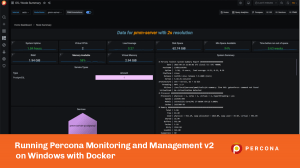 One way to run Percona Monitoring and Management (PMM) v2 on Windows is using the Virtual Appliance installation method. It works well but requires you to run extra software to run Virtual Appliances, such as Oracle VirtualBox, VMWare Workstation Player, etc. Or, you can use Docker.
Docker is not shipped with Windows 10, though you can get it installed for free with Docker Desktop. Modern Docker on Windows actually can either run using Hyper-V backend or using Windows Subsystem for Linux v2 (WSL2). Because WSL2-based Docker installation is more involved, I’m sticking to what is now referred to as “legacy” Hyper-V backend.
On my Windows 10 Pro (19042) system, I had to change some BIOS settings:

And install the Hyper-V component for Docker Desktop to install correctly:

With this, we’re good to go to install Percona Monitoring and Management on Windows.
Register for Percona Live ONLINE
A Virtual Event about Open Source Databases
Official installing PMM with Docker instructions assumes you’re running a Linux/Unix-based system that needs to be slightly modified for Windows. First, there is no sudo on Windows, and second, “Command Prompt” does not interpret “\” the same way as shell does.
With those minor fixes though, basically, the same command to start PMM works:
docker pull percona/pmm-server:2
docker create --volume /srv --name pmm-data percona/pmm-server:2 /bin/true
docker run --detach --restart always --publish 80:80 --publish 443:443 --volumes-from pmm-data --name pmm-server percona/pmm-server:2
That’s it! You should have your Percona Monitoring and Management (PMM) v2 running!
Looking at PMM Server Instance through PMM itself you may notice it does not have all resources by default, as Docker on Linux would.

Note there are only 2 CPU cores, 2GB of Memory, and some 60GB of Disk space available. This should be enough for a test but if you want to put some real load on this instance you may want to adjust those settings. It is done through the “Resources” setting in Docker Desktop:

Adjust these to suit your load needs and you’re done! Enjoy your Percona Monitoring and Management!
Mar
18
2021
18
2021
--
Slapdash raises $3.7M seed to ship a workplace apps command bar
The explosion in productivity software amid a broader remote work boom has been one of the pandemic’s clearest tech impacts. But learning to use a dozen new programs while having to decipher which data is hosted where can sometimes seem to have an adverse effect on worker productivity. It’s all time that users can take for granted, even when carrying out common tasks like navigating to the calendar to view more info to click a link to open the browser to redirect to the native app to open a Zoom call.
Slapdash is aiming to carve a new niche out for itself among workplace software tools, pushing a desire for peak performance to the forefront with a product that shaves seconds off each instance where a user needs to find data hosted in a cloud app or carry out an action. While most of the integration-heavy software suites to emerge during the remote work boom have focused on promoting visibility or re-skinning workflows across the tangled weave of SaaS apps, Slapdash founder Ivan Kanevski hopes that the company’s efforts to engineer a quicker path to information will push tech workers to integrate another tool into their workflow.
The team tells TechCrunch that they’ve raised $3.7 million in seed funding from investors that include S28 Capital, Quiet Capital, Quarry Ventures and Twenty Two Ventures. Angels participating in the round include co-founders at companies like Patreon, Docker and Zynga.
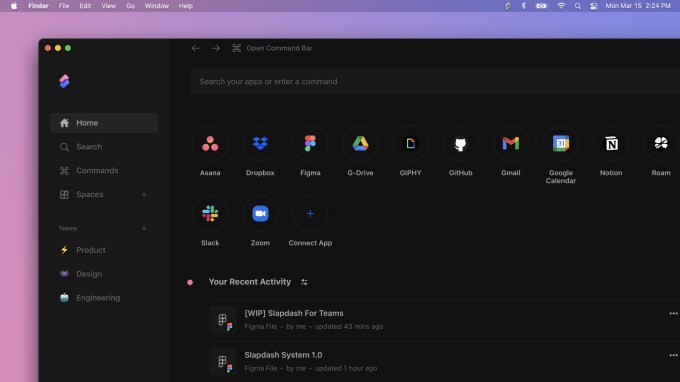
Image Credits: Slapdash
Kanevski says the team sought to emulate the success of popular apps like Superhuman, which have pushed low-latency command line interface navigation while emulating some of the sleek internal tools used at companies like Facebook, where he spent nearly six years as a software engineer.
Slapdash’s command line widget can be pulled up anywhere, once installed, with a quick keyboard shortcut. From there, users can search through a laundry list of indexable apps including Slack, Zoom, Jira and about 20 others. Beyond command line access, users can create folders of files and actions inside the full desktop app or create their own keyboard shortcuts to quickly hammer out a task. The app is available on Mac, Windows, Linux and the web.
“We’re not trying to displace the applications that you connect to Slapdash,” he says. “You won’t see us, for example, building document editing, you won’t see us building project management, just because our sort of philosophy is that we’re a neutral platform.”
The company offers a free tier for users indexing up to five apps and creating 10 commands and spaces; any more than that and you level up into a $12 per month paid plan. Things look more customized for enterprise-wide pricing. As the team hopes to make the tool essential to startups, Kanevski sees the app’s hefty utility for individual users as a clear asset in scaling up.
“If you anticipate rolling this out to larger organizations, you would want the people that are using the software to have a blast with it,” he says. “We have quite a lot of confidence that even at this sort of individual atomic level, we built something pretty joyful and helpful.”
Mar
16
2021
16
2021
--
Docker nabs $23M Series B as new developer focus takes shape
It was easy to wonder what would become of Docker after it sold its enterprise business in 2019, but it regrouped last year as a cloud native container company focused on developers, and the new approach appears to be bearing fruit. Today, the company announced a $23 million Series B investment.
Tribe Capital led the round with participation from existing investors Benchmark and Insight Partners. Docker has now raised a total of $58 million including the $35 million investment it landed the same day it announced the deal with Mirantis.
To be sure, the company had a tempestuous 2019 when they changed CEOs twice, sold the enterprise division and looked to reestablish itself with a new strategy. While the pandemic made 2020 a trying time for everyone, Docker CEO Scott Johnston says that in spite of that, the strategy has begun to take shape.
“The results we think speak volumes. Not only was the strategy strong, but the execution of that strategy was strong as well,” Johnston told me. He indicated that the company added 1.7 million new developer registrations for the free version of the product for a total of more than 7.3 million registered users on the community edition.
As with any open-source project, the goal is to popularize the community project and turn a small percentage of those users into paying customers, but Docker’s problem prior to 2019 had been finding ways to do that. While he didn’t share specific numbers, Johnston indicated that annual recurring revenue (ARR) grew 170% last year, suggesting that they are beginning to convert more successfully.
Johnston says that’s because they have found a way to turn a certain class of developer in spite of a free version being available. “Yes, there’s a lot of upstream open-source technologies, and there are users that want to hammer together their own solutions. But we are also seeing these eight to 10 person ‘two-pizza teams’ who want to focus on building applications, and so they’re willing to pay for a service,” he said.
That open-source model tends to get the attention of investors because it comes with that built-in action at the top of the sales funnel. Tribe’s Arjun Sethi, whose firm led the investment, says his company actually was a Docker customer before investing in the company and sees a lot more growth potential.
“Tribe focuses on identifying N-of-1 companies — top-decile private tech firms that are exhibiting inflection points in their growth, with the potential to scale toward outsized outcomes with long-term venture capital. Docker fits squarely into this investment thesis [ … ],” Sethi said in a statement.
Johnston says as they look ahead post-pandemic, he’s learned a lot since his team moved out of the office last year. After surveying employees, they were surprised to learn that most have been happier working at home, having more time to spend with family, while taking away a grueling commute. As a result, he sees going virtual first, even after it’s safe to reopen offices.
That said, he is planning to offer a way to get teams together for in-person gatherings and a full company get-together once a year.
“We’ll be virtual first, but then with the savings of the real estate that we’re no longer paying for, we’re going to bring people together and make sure we have that social glue,” he said.
Early Stage is the premier “how-to” event for startup entrepreneurs and investors. You’ll hear firsthand how some of the most successful founders and VCs build their businesses, raise money and manage their portfolios. We’ll cover every aspect of company building: Fundraising, recruiting, sales, product-market fit, PR, marketing and brand building. Each session also has audience participation built in — there’s ample time included for audience questions and discussion. Use code “TCARTICLE at checkout to get 20% off tickets right here.